 ™
™
Quick Answer
Running Grass as a node means sharing the bandwidth your internet connection is not using with a network that gathers public web data for verified institutions. Any device running a supported OS and connected to home Wi-Fi qualifies. Install the Grass Desktop App or Android app, sign in, and leave it on. Grass Points accumulate in the Grass Dashboard.
A spare laptop or phone that still connects to Wi-Fi can run as a Grass node, contributing idle bandwidth to a network used by verified institutions to access public web data.
People often ask whether the device needs to be fast or powerful. It does not. Grass supports Windows 8.1 or later, macOS 11 (Big Sur) or later, Ubuntu 24 or later, and Android. If your old device runs any of those systems and holds a connection, it qualifies.
This guide covers the four things that matter most before you start:
- Whether your specific device qualifies (compatibility table by OS)
- What actually earns Grass Points: Network Points from routed requests, Uptime Points from staying connected
- How to install the Grass desktop app or Android app in under five minutes, with platform-specific steps
- What to realistically expect after setup, including the Grass Dashboard lag and the Desktop App vs. Lite node difference
The Grass network is AppEsteem-certified. It never accesses your personal files or browsing history. You can pause or uninstall at any time. Setup is the only part that requires your attention.
An old laptop or phone that still connects to Wi-Fi can run Grass as a node and earn Grass Points from the bandwidth it is not using.
People often ask me whether their device needs to be fast or new. It does not. The Grass network has more than 2.5 million daily active users contributing from ordinary home connections, and the bandwidth it routes is residential traffic that looks identical to normal browsing. What the network needs from your spare device is simple: power, a stable connection, and the Grass desktop app or Android app installed and running.
Grass Points are earned in two ways. Network Points come from requests the network routes through your device. Uptime Points come from staying consistently online. Both accumulate automatically in the Grass Dashboard, without any action on your part after setup.
The device never touches your personal files or browsing history. Grass is AppEsteem-certified and uses encryption. You can pause or uninstall at any time. In my experience, the most important thing to get right at the start is simply leaving the device plugged in and connected, because uptime is the one variable fully in your control.
Questions this article answers
Questions this guide answers:
Can an old laptop or phone really earn Grass Points?
Yes. Any device running a supported OS and connected to Wi-Fi can run Grass and earn Grass Points from the bandwidth you are not using.
Here is what is actually happening: Grass is a bandwidth-sharing network, not a trading platform or a 3D design tool. (The name causes confusion online because unrelated software shares it.) An analysis of community reports and Grass's own documentation shows the app routes public web data through your device's idle connection, the kind of capacity that sits empty while the device is locked on a desk or charging on a nightstand. Verified institutions use that capacity to access publicly available web data. You earn Grass Points for the bandwidth your device contributes, as of .
Think of it as the two-question test. First: does the device connect to the internet? Second: can you leave it on? If both answers are yes, it qualifies. The device does not need to be fast. It does not need a large hard drive. Grass uses only idle resources. The Grass team's own guidance describes the Desktop App as running with "only a small portion of your system resources" in the background.
A common misconception is that old hardware is too slow to be useful. The reality is that speed matters very little here. The Grass node routes network requests, not compute-intensive tasks. A five-year-old laptop that struggles to open a browser tab can still contribute unused bandwidth with no noticeable strain. The bottleneck is the internet connection, not the processor.
Grass Points accumulate in two forms. Network Points are earned when the Grass network actively routes requests through your device. Uptime Points are earned simply for keeping the node connected and running. The Desktop App earns at twice the rate of the browser extension (the Lite node), and the two cannot run at the same time. Install the Desktop App for the best contribution rate.
In practice: a spare device that stays on and connected is all the setup requires. The Grass app does the rest in the background.
What affects how many Grass Points a spare device earns?
Two things drive Grass Points: how often the network chooses to route requests through your device (Network Points) and how consistently the device stays online (Uptime Points).
From what I have seen in community discussions, the most consistent factor inside a user's control is uptime. Network Points carry more per-point value than Uptime Points, but Network Points are awarded when the Grass network actively selects your device, which is not something you can force. What you can control is whether the device is on, connected, and reachable when a request comes in. A device that drops off every few hours contributes less, even if it has a fast connection.
In practice, uptime beats speed. A steady 10 Mbps connection running around the clock will outperform a faster connection that is only available intermittently. The network rewards consistency. The Grass Dashboard shows your running totals for both metrics so you can see how your device is contributing over time.
The takeaway: treat a spare device as a set-and-forget contribution, not an actively managed one. The more hours it is on and reachable, the better. That is the whole lever. Checking on it once a week to confirm it is still running is enough.
One thing worth being honest about: the community's experience shows a real gap between uptime and what the network actually selects. Uptime Points accumulate reliably. Network Points depend on the network's demand at a given moment. Community members who ran devices for extended periods found that their Uptime Point totals were large while Network Points accumulated more slowly, which tracks with how bandwidth-sharing networks generally work: participation is broad, but active usage fluctuates.
What this means for a spare device: set it up, leave it running, and check the Dashboard occasionally. The contribution is real. The pace is gradual.
What are the honest challenges of running Grass on an old device?
Setup is straightforward for most people. But it is worth naming what can go wrong, so you know what to watch for and are not caught off guard.
The biggest issue I see come up repeatedly is connection stability. Grass is sensitive to routers and modems that have been handling heavy traffic over a long period. If the node shows as disconnected shortly after you set it up, a software reset of your router (not just unplugging it) often restores the connection. This is mentioned consistently in community troubleshooting threads. It is a one-time fix, not an ongoing maintenance task, but it catches people by surprise.
The Dashboard lag is also worth knowing about upfront. A node can take 10 to 30 minutes to appear on the Grass Dashboard after you start the app. In practice, the node is running before it shows up. Do not interpret a blank or unchanged Dashboard as a sign that something is broken. Give it half an hour, then check again.
The browser extension has caused more problems than the Desktop App. According to discussion on r/Grass_io, even experienced users encountered the extension disconnecting shortly after it appeared to be working, with no clear resolution. The Grass team has confirmed the extension is being deprecated in favor of the Desktop App, which is more stable and uses fewer system resources. In my view, skipping the extension entirely and installing the Desktop App from the start avoids most of the common frustrations.
One more practical note: the Desktop App and the browser extension cannot run at the same time. If both are installed, the system defaults to the extension and the Desktop App earns nothing. Remove the extension completely before running the Desktop App.
The takeaway: most setup issues are one-time, solvable problems. The Desktop App on a supported OS, with a stable connection and no extension running alongside it, is a reliable setup. The frustrations people report are almost always about the extension or about running on unsupported hardware.
Which devices can run Grass as a node?
Grass supports Windows, macOS, Ubuntu Linux, and Android. If your old device runs any of these at a supported version, it qualifies.
Here is the compatibility table, based on the official platform requirements confirmed by the Grass team in community channels:
| Platform | Minimum version | Architecture | Supported |
|---|---|---|---|
| Windows | Windows 8.1 | 64-bit (x64) only | Yes |
| macOS | macOS 11 (Big Sur) | Intel and Apple Silicon | Yes |
| Ubuntu Linux | Ubuntu 22.04 | 64-bit (x64) only | Yes |
| Android | Current app version | All supported Android devices | Yes |
| iOS / iPhone / iPad | N/A | N/A | No |
| 32-bit Windows or Linux | N/A | 32-bit | No |
| Raspberry Pi / ARM Linux | N/A | ARM (non-Apple) | No |
Three platform-specific things worth knowing before you install:
- Windows: The Desktop App uses Microsoft Edge's WebView2 component. If you have a browser blocker or have disabled Edge, you will need to re-enable it. The node will not launch without it.
- macOS: The app must be run from the Applications folder. Moving the app file anywhere else triggers an error at launch. Drag it into Applications first, then open it from there.
- Ubuntu Linux: Ubuntu's package manager uses the identifier "grass" for both the Grass node app and an unrelated geospatial software called GRASS GIS. On an automatic system update, Ubuntu can silently replace the Grass node with GRASS GIS. Pinning the package or disabling that repository source prevents this. Lightweight distros such as antiX Linux avoid this collision entirely and handle USB-persistent node setups well.
In practice, any old Windows or Mac laptop that still boots and connects to Wi-Fi is likely to work. The minimum OS bar is low. Windows 8.1 is over a decade old. macOS Big Sur shipped in 2020 on Intel Macs. Most spare hardware that is not broken qualifies.
What this means: before you decide whether to try Grass on an old device, check the OS version first. That is the only real gate. Processing speed and available storage are not factors.
Is it safe to leave Grass running on an old device?
Grass does not access your personal files, browsing history, or any data stored on the device. It uses only the spare bandwidth of your internet connection.
Here is what the node actually does: when the Grass network routes a request through your device, your connection is used to access publicly available web content, the kind of pages anyone with a browser could visit. According to Grass co-founder Andrej Radonjic, nodes run on residential devices and networks, which makes the success rate high for this type of public data collection because the traffic is indistinguishable from normal user browsing to web servers. The bandwidth the node uses is idle capacity. It is not your active session. It is not your files. It is the empty lanes in the road while you are not driving.
From a safety standpoint, a few specifics are worth knowing:
- No access to personal data: Grass does not read your files, emails, passwords, or browsing history. The app cannot see what you are doing on the device.
- AppEsteem certified: Grass has been audited by AppEsteem, an independent certification body that evaluates software for deceptive or harmful behavior. Certification requires passing checks on installation, behavior, and removal.
- Encryption: Traffic is encrypted. Your connection is not exposed in plain text.
- One account per person: The Grass network is built for individual contributors, not mass deployment. Running multiple accounts from a single person is against the network's terms.
- Full control: You can pause the node from the app at any time. You can uninstall it with a standard system uninstall. Nothing persists without your knowledge.
I find the privacy framing straightforward once you understand the mechanism. The node is not a window into your device. It is a valve on your connection. The network opens that valve briefly to route a public-web request, then closes it. Your device is a contributor to a shared infrastructure, not a target of it.
The takeaway: running Grass on an old secondary device carries the same risk profile as running any certified background utility. The app has been independently audited. You can stop it at any time.
How do you set up Grass on an old laptop or phone?
Download the Grass desktop app, sign in with your account, and leave it running. Setup takes about five minutes on any supported platform.
Here is the step-by-step for each platform:
- Windows: Download the Grass desktop app from the official Grass website. If the installer prompts for WebView2, a Microsoft Edge component, let it install. Windows 8.1 and Windows 10 may need it before the app will open. Once installed, sign in and the node starts automatically.
- macOS: Download the .dmg file and drag Grass into your Applications folder before opening it. Running the app directly from your Downloads folder causes macOS to flag it as untrusted, which means it fails without a clear error. Applications folder first, then open.
- Ubuntu Linux: Download the installer directly from the Grass website rather than searching through apt. Ubuntu's package manager has an unrelated geographic information system tool also called GRASS, and installing that by mistake is easy. The Grass website link takes you to the right package.
- Android: Install the Grass app from the Google Play Store. Sign in, enable the background service, and set the phone to charge somewhere it can stay connected. The app runs quietly while the screen is off.
After installing, give the Grass Dashboard 10 to 30 minutes to reflect the new connection. That lag is normal. Once the node appears, you will see your uptime accumulating in real time.
A note on app choice: The Grass desktop app earns Network Points at a 2x rate compared to the Lite node browser extension. You cannot run both at the same time on the same device and account. For a spare laptop that stays plugged in, I would choose the desktop app. For a machine you use throughout the day, the extension is the lighter option.
Once it is running, there is nothing left to manage. The node uses bandwidth your active apps are not touching, and you can pause or uninstall anytime from the same interface you used to set it up.
# Ubuntu: check for conflicting GRASS GIS package
dpkg -l | grep -i grass

# grass-core = the GIS mapping tool (not the Grass node)
# If it appears, remove it before installing the Grass desktop app
sudo apt remove grass-core
On Ubuntu, running this check first saves time. The package manager includes an unrelated geographic mapping tool with the same name. If grass-core appears in the output, remove it so the Grass node installer does not conflict.
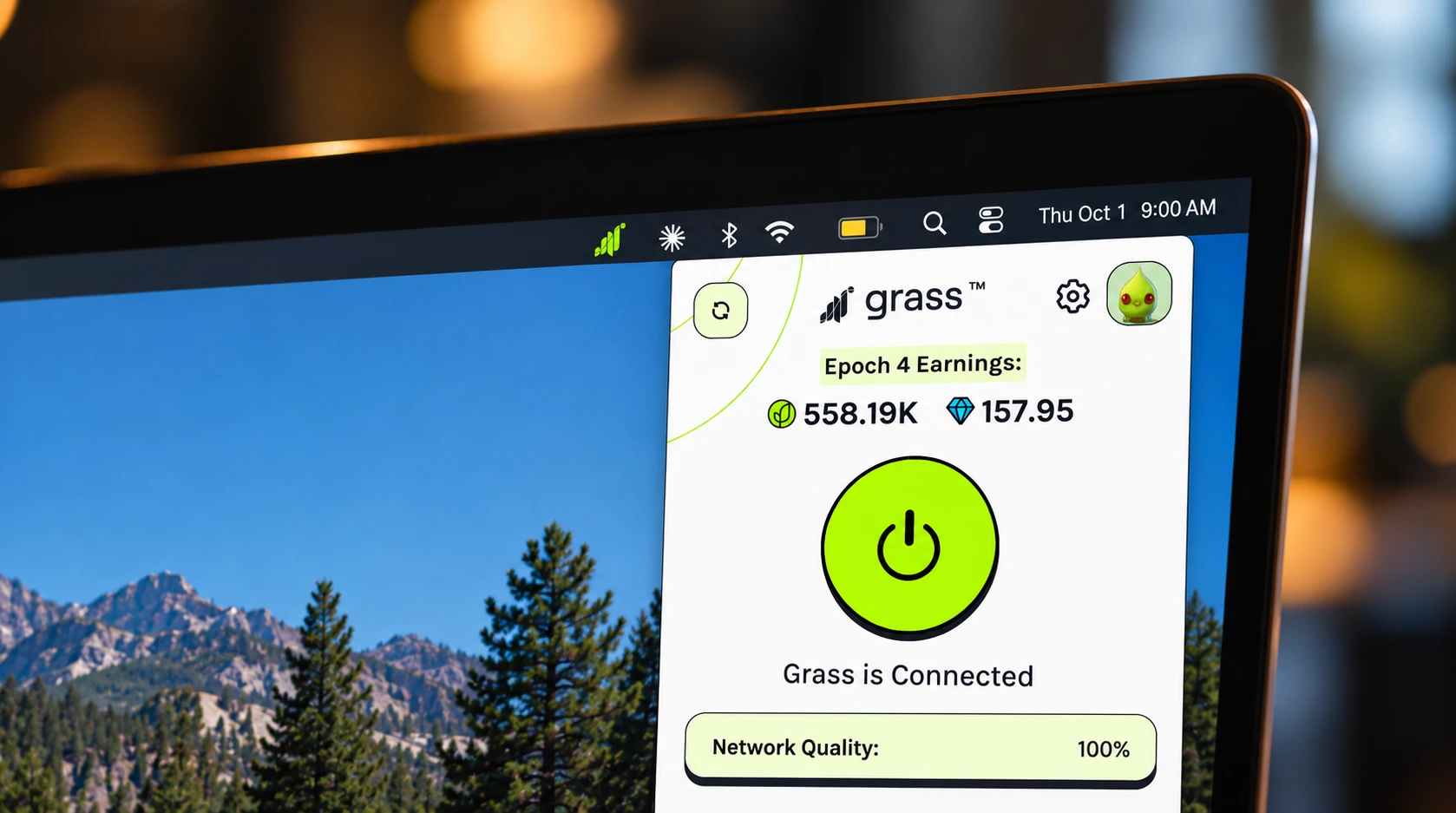
What changes when you plug in a spare laptop as a Grass node?
The same device that sat unused starts earning Grass Points from idle bandwidth it already had. No new hardware required.
Before: An old laptop in a drawer. Power off. Bandwidth unused. No Uptime Points accumulating.
After: The laptop is plugged in, the Grass desktop app is running, and the Grass Dashboard shows your node connected. Uptime Points accumulate as long as the connection holds. The bandwidth your household was not using routes through the Grass network for verified institutions accessing public web data. Your active internet traffic is untouched.
Key Takeaways
- Any device running a supported OS and connected to Wi-Fi qualifies. Age and speed do not matter.
- Uptime is the primary lever. Consistent uptime earns Uptime Points steadily over time.
- After install, wait 10 to 30 minutes before checking the Grass Dashboard. The lag is normal.
- Grass never accesses your files or browsing history. It uses only idle bandwidth your other apps are not using.
What should you realistically expect from a spare device running Grass?
A device left plugged in and connected earns Grass Points steadily over time. Uptime is the one variable fully in your control.
The honest picture: your spare laptop or phone contributes its idle bandwidth to a network used by verified institutions to access public web data. The Grass Dashboard shows your Network Points and Uptime Points as they accumulate. How consistently the device stays online determines your share each period. The Desktop App earns at the higher rate. Stability matters more than speed.
From what I have seen, the people who get the most out of this setup treat it as set-and-forget. Plug in the device, install the app, check the Dashboard once in a while. If you are comfortable leaving a laptop running in the background, you have already done the hard part. The next step is just downloading the app and leaving it on.
If you have a spare device sitting unused, installing the Grass desktop app or Android app is the simplest way to put it to use without spending anything or giving up the connection speed you already rely on.
Frequently asked questions
Grass works on any laptop running Windows 8.1 or later (64-bit), macOS 11 (Big Sur) or later, or Ubuntu 24 or later. If your device runs one of those operating systems and connects to Wi-Fi, it qualifies. Age and speed do not matter.
Yes, on Android. The Grass Android app is available on the Google Play Store. iOS is not currently supported, so iPhones and iPads cannot run a Grass node.
Check the Grass Dashboard, which shows your node status, Network Points, and Uptime Points. There is usually a lag of 10 to 30 minutes before a new connection appears. If the node shows as connected after that window, it is working.
No. Grass uses only idle bandwidth that your active apps are not touching. It steps aside automatically when your games, calls, or streams need the connection. You should not notice any difference in performance.
You do not have to, but consistent uptime directly affects your Uptime Points. The more reliably the device stays connected, the more Uptime Points it earns. Plugging in a spare device and leaving it on is the simplest way to keep uptime steady.
Written by
Maya Ellis
Contributor Education Writer
Maya Ellis writes Grass's getting-started and trust-and-safety guides.
Follow on XSummarize This Article With AI
Open this article in your preferred AI engine for an instant summary.